2. 🔌 Choosing Your System: Key Features and Compatibility
When selecting your Smart Printers/Scanners , you must choose the appropriate printing technology (Inkjet vs. Laser/Tank), prioritize features that support secure data transfer, and ensure the device is compatible with your preferred mobile and cloud ecosystems.
Essential Variations and Printing Technology
Smart Printers/Scanners are categorized primarily by their core printing technology and long-term cost of operation:
-
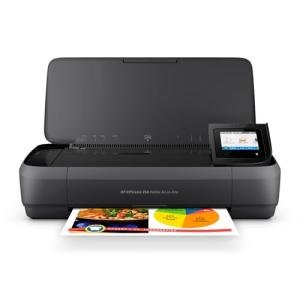
Inkjet All-in-One (Versatility/Color Quality):
-
Pros: Offers the best quality for color photos and graphics. Inkjet Smart Printers/Scanners are the most versatile, handling various paper types and often coming with a lower upfront cost.
-
Cons: Ink cartridges are expensive, and traditional inkjet ink can dry out if not used frequently.
-
US Lifestyle Context: Ideal for a family or student in a residential home who needs occasional, high-quality color printing for school projects or photo albums.
-
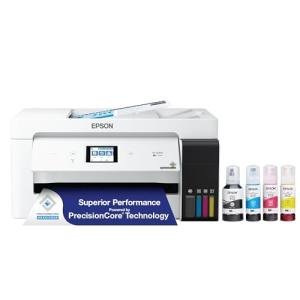
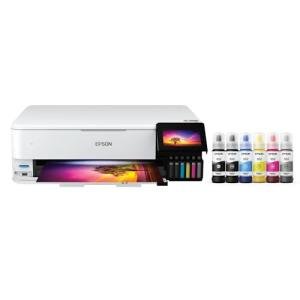
Ink Tank/EcoTank Printers (Cost and Energy Efficiency):
-
Pros: These Smart Printers/Scanners replace cartridges with refillable, high-capacity ink tanks. The cost per page is drastically lower (up to 90% cheaper), and the bulk tanks are more Energy Efficiency in terms of material waste. They are preferred for high-volume use.
-
Cons: Higher initial purchase price. Refilling can be slightly messier than swapping cartridges.
-
US Lifestyle Context: Essential for remote workers or small businesses operating from a home office who require continuous, high-volume black-and-white and color printing with minimal maintenance disruption.
-
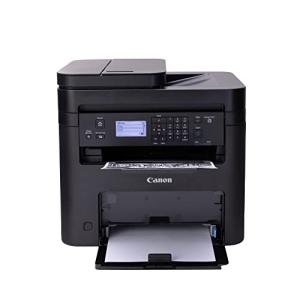
Laser Printers (Speed/Reliability):
-
Pros: Offers the fastest printing speeds and lowest black-and-white cost per page. Toner cartridges do not dry out, making them highly reliable for intermittent use. Excellent for professional text documents.
-
Cons: High initial cost for color laser models. Toner cartridges draw significantly more power during the initial heating phase than inkjet models.
-
US Lifestyle Context: Necessary for professionals like lawyers or accountants who need to print large volumes of secure, sharp text documents quickly and efficiently.
Compatibility Protocols
For seamless, multi-device functionality, Smart Printers/Scanners must support universal wireless standards and secure, cloud-based data management.
-
Wi-Fi Direct/AirPrint/Mopria: The printer must support universal mobile protocols (Apple AirPrint, Android Mopria) for direct printing from smartphones and tablets without needing a local Wi-Fi router.
-
Cloud Integration: Look for direct scanning-to-cloud features (e.g., scan to email, Dropbox, Google Drive). This provides instant Remote Access to scanned documents and files from any location.
-
Firmware and Security: The device must support automatic or easy firmware updates, protecting the connected device from network vulnerabilities.
3. 🛠️ Installation and Setup Walkthrough
Installing Smart Printers/Scanners is generally easy, but securing the network connection and optimizing the sleep schedule are necessary for long-term reliability and efficiency.
Pre-Installation Preparations
-
Placement and Connectivity: Place the Smart Printers/Scanners in a centralized location near your primary workspace. Ensure it has a strong Wi-Fi signal (printers often struggle with weak signals). Place it on a flat, stable surface.
-
Supply Check: Install all ink/toner cartridges or fill the ink tanks. Load paper into the tray.
-
App Activation: Download the manufacturer's mobile app and complete the initial setup and Wi-Fi connection through the app's guided steps.
Installation Guide (Typical Wi-Fi All-in-One)
-
Physical Setup: Unpack the unit, remove all protective tapes and cardboard braces (critical to check inside the paper paths), and plug the printer into a non-switched wall outlet.
-
Network Connect: Use the printer's touchscreen or the smartphone app to connect the Smart Printers/Scanners to your home Wi-Fi network.
-
Remote Access Configuration: Install the printer software on your primary computer. Set up cloud integration (e.g., link the scanner to your Google Drive account) and ensure Remote Access printing via the app is functional.
-
Auto-Replenishment: Enroll in the automatic supply reordering service (if desired). The printer begins 24/7 Monitoring of ink/toner levels immediately and orders replacements when they run low.
Troubleshooting Common Issues
-
Issue 1: Printer Falls Offline Frequently.
-
Issue 2: Slow Start-Up Time (Power Consumption).
-
Issue 3: Remote Access Printing Fails.
4. Advanced Automation and Maximizing Value
The networking capabilities of Smart Printers/Scanners allow for unique security, document management, and resource efficiency routines.
Powerful Automation Scenarios
-
Automated Security Scan: An Alarm System Sensors (like a contact sensor) detects unauthorized entry into the office overnight. An automation is triggered to remotely activate the Smart Printers/Scanners and print a security message or alert page, creating audible/visible deterrence and logging the event. This enhances 24/7 Monitoring .
-
Scheduled Energy Efficiency Shutdown: You plug the Smart Printers/Scanners into a Smart Wall Outlet . An automation is set to cut power completely to the outlet at 11 PM and restore it at 7 AM. This eliminates standby phantom load power draw, maximizing the unit's Energy Efficiency .
-
Remote Document Management: While you are traveling, you receive a client document via email. You use the printer app via Remote Access to forward the document to the Smart Printers/Scanners at home. A family member then retrieves the hard copy, providing seamless workflow continuity.
Longevity & Maintenance
The longevity of Smart Printers/Scanners is tied to consistent use (especially inkjets) and proactive digital maintenance. Always use the device's self-cleaning head function regularly (inkjets) to prevent clogs. Keep the firmware updated; updates often improve Wi-Fi stability, security features, and Energy Efficiency algorithms. Proactively manage the auto-replenishment service to ensure you never run out of supplies.
5. COMPLEMENTARY CATEGORY RECOMMENDATIONS
| Recommended Categories |
Why This Category Is Useful Specifically for This Product |
Short Usage Scenario |
| Smart Power |
Smart plugs and outlets manage the printer's power schedule, cutting standby power to maximize Energy Efficiency . |
The Smart Wall Outlet cuts power to the printer every night after 10 PM. |
| Smart Notepads |
The notepad digitizes handwritten notes, which can then be printed instantly via the connected Smart Printers/Scanners . |
Writing a document on the notepad and using Remote Access to print it to the smart printer at home. |
| Uninterruptible Power Supplies Ups |
A UPS protects the printer and computer hub from power surges and flickers, preventing damage during print jobs. |
The UPS ensures the printer does not fail mid-job during a brief power dip. |
| High End Gaming Routers |
The router provides the necessary stable Wi-Fi signal for large document uploads and continuous supply 24/7 Monitoring . |
The gaming router maintains a strong Wi-Fi signal for the printer placed in the basement office. |
| Smart Displays |
Displays provide a convenient, visual interface for initiating print jobs or viewing the scanner's destination folder. |
Tapping the smart display screen to initiate a cloud printing job. |
| Smart Home Control |
Used to program automation routines that link the printer status to other devices (e.g., turning on lighting). |
A printing job finishing triggers the office Smart Desk Lamps to turn off. |
| Motion Presence Sensors |
Sensors detect when the user is away, triggering the printer to enter a deep sleep mode for Energy Efficiency . |
The sensor detects office vacancy, and the printer enters its low-power state. |
| Smart Ethernet Switches |
Provides a secure, wired network connection for the printer for high-speed scanning and large print jobs. |
Plugging the Smart Printers/Scanners into the smart switch for high-speed network scanning. |
Smart Printers/Scanners are the essential productivity tool for the modern, connected home or office. They eliminate cable clutter, automate supply management via 24/7 Monitoring , and ensure seamless workflow continuity via Remote Access . By choosing a smart model with Energy Efficiency features, you reduce waste and simplify maintenance. Upgrade your document creation and scanning today with the intelligent ease of Smart Printers/Scanners .