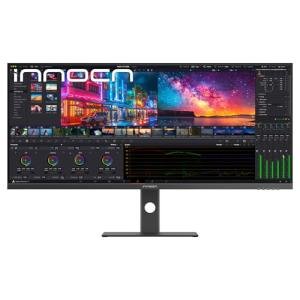
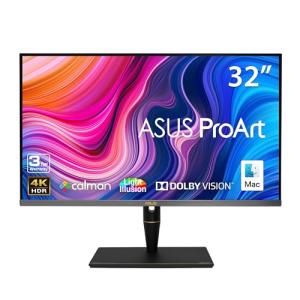
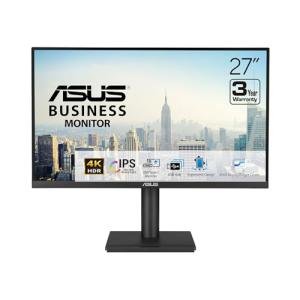
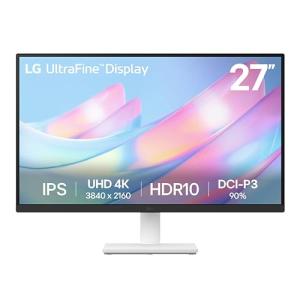
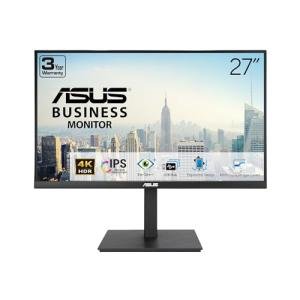
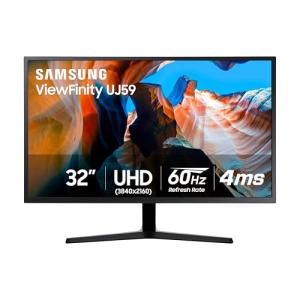
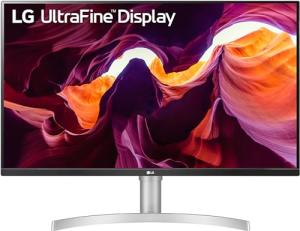
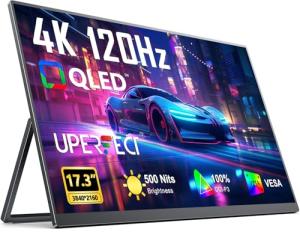
2. 🔌 Choosing Your System: Key Features and Compatibility
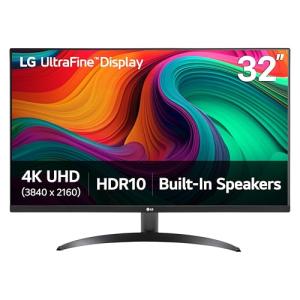
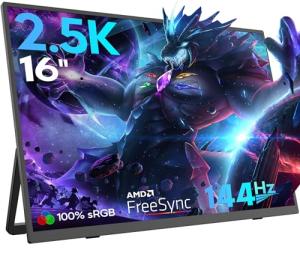
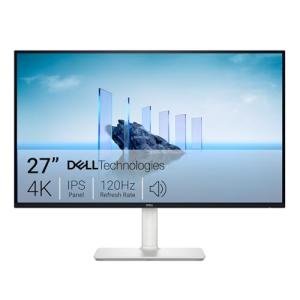
When selecting your 4K/5K Business Monitors , you must choose the appropriate screen size for your viewing distance, ensure the connectivity ports support high-bandwidth video, and look for integrated features that simplify your workspace.
Essential Variations and Connectivity Focus
4K/5K Business Monitors are primarily categorized by their input standards and panel technology, which directly influence their performance in a professional setting:
-
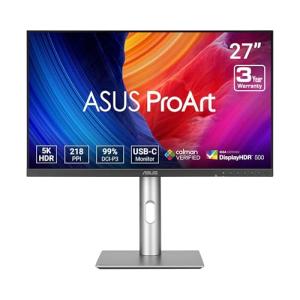
USB-C/Thunderbolt Monitors (The Single-Cable Hub):
-
Pros: These 4K/5K Business Monitors feature a single USB-C port that handles power (charging your laptop, often 65W to 90W), high-resolution video (4K or 5K), and data (for the monitor's built-in USB hub). This is the ultimate solution for cable management and mobility, reducing desktop clutter and boosting system Energy Efficiency .
-
Cons: High-wattage power delivery drives up the monitor’s price. Some older laptops may not support the necessary DisplayPort over USB-C protocol for full resolution.
-
US Lifestyle Context: Essential for professionals in a highly mobile office in San Francisco who use a laptop as their primary machine and need quick, one-cable connection to the desktop setup.
-
Color-Accurate Monitors (Creative/Financial Focus):
-
Pros: These 4K/5K Business Monitors feature wide color gamut support (e.g., 99% DCI-P3 or Adobe RGB) and are factory-calibrated. This guarantees the color displayed is accurate, which is non-negotiable for video editors, graphic designers, or web developers.
-
Cons: Calibration increases the price substantially. Requires color profiles to be managed by the user's operating system.
-
US Lifestyle Context: Ideal for a freelance designer or editor in a home studio in New York, where color accuracy is directly tied to the quality and reliability of their professional output.
-
KVM and Daisy-Chaining Features:
-
Pros: KVM (Keyboard, Video, Mouse) functionality allows you to connect two computers to the monitor and switch your keyboard/mouse control between them using a single monitor input. Daisy-chaining (using DisplayPort or Thunderbolt output) allows you to connect multiple monitors using only one cable from the PC.
-
Cons: Daisy-chaining capacity is limited by the graphics card's output capability.
Compatibility Protocols
For seamless, ergonomic integration, 4K/5K Business Monitors require compatibility with modern input standards and physical mounting solutions.
-
High-Bandwidth Inputs (DisplayPort/HDMI 2.1): To drive 4K/5K resolution at 60Hz or higher refresh rates, you must ensure the monitor and your PC support DisplayPort 1.4 or HDMI 2.1. Older cables or ports will bottleneck the resolution or refresh rate.
-
VESA Mounting: All quality 4K/5K Business Monitors are VESA compliant. Given the large footprint of these displays, using a robust Monitor Arm/Stand is highly recommended to save desk space and achieve perfect ergonomic height adjustment.
-
Smart Power Integration: Business monitors can integrate with Smart Power Strips or Smart Wall Outlets . This allows the entire monitor setup to be put on an automated power schedule, minimizing standby power draw and contributing to overall Energy Efficiency .
3. 🛠️ Installation and Setup Walkthrough
Installing 4K/5K Business Monitors is straightforward but requires careful handling due to the display's size and the necessity of using the correct high-bandwidth cables.
Pre-Installation Preparations
-
Cable Check: You must use the highest-rated cables (DisplayPort 1.4 or Thunderbolt 4) provided with the monitor. Using older cables is the number one cause of flickering or failure to display full resolution.
-
Ergonomics Check: Ensure your desk is deep enough and your Ergonomic Executive Chairs is properly adjusted. The monitor should be placed at arm's length, and the top of the screen should be at or slightly below eye level.
-
App/Software Install: Install the manufacturer's monitor control software (if applicable). This software is often required to activate features like KVM, manage color profiles, and access diagnostics via Remote Access .
Installation Guide (Typical USB-C Docking Monitor)
-
Assemble/Mount: Attach the monitor stand base or secure the VESA mount/arm to your desk. Attach the monitor panel to the mount.
-
Connect Power: Plug the monitor's power cord into a Smart Wall Outlet or power strip.
-
Single-Cable Connection: If using a laptop, connect the single USB-C cable from the monitor to your laptop. This should instantly connect the video, power the laptop, and enable the USB hub.
-
Driver and Resolution Check: On your PC/laptop, verify that the operating system recognizes the native 4K/5K resolution. Run a factory color calibration profile (often available in the monitor's on-screen menu).
-
Final Adjustment: Adjust the monitor arm for perfect ergonomic height and angle. Test the monitor's automatic brightness adjustment feature, if available.
Troubleshooting Common Issues
-
Issue 1: Monitor is Dimmed or Flickering.
-
Resolution: Check the video cable connection; flickering often signals bandwidth issues. If using USB-C, ensure the cable supports the full bandwidth (DisplayPort 1.4). Also, check the monitor's Energy Efficiency settings; aggressive power-saving modes can cause dimming.
-
Issue 2: KVM Switch Fails to Recognize Mouse/Keyboard.
-
Issue 3: Remote Access to Monitor Diagnostics Fails.
-
Resolution: If your monitor offers cloud-based status checks (rare, but emerging), ensure its Wi-Fi connection is active. Check the manufacturer's app to confirm the monitor is reporting its 24/7 Monitoring status. If it's simply power-related, check the Smart Power Strip status.
4. Advanced Automation and Maximizing Value
The high pixel density and integrated smart hubs of 4K/5K Business Monitors enable powerful automations that enhance both security and workflow.
Powerful Automation Scenarios
-
Security Dashboard and Monitoring: You dedicate a fixed section of your 5K screen (using native software partitioning) to display a 24/7 Monitoring grid of your Indoor Security Cameras and Outdoor Security Cameras . This constant visual oversight integrates security into your professional workflow without disruption.
-
Automated Wake/Sleep and Energy Efficiency: You integrate the monitor's power source (via a smart plug) with a Motion/Presence Sensor in your office. When the sensor detects no movement for 30 minutes, the monitor is automatically put into its lowest power state, and after 60 minutes, the smart plug cuts the power entirely, ensuring maximum Energy Efficiency .
-
Remote Access Power Cycle: If the screen freezes while you are away from home, you use the Remote Access feature of your Smart Wall Outlet to remotely power cycle the monitor. This forces a reboot of the display without affecting the computer, restoring functionality and ensuring continuity of 24/7 Monitoring .
Longevity & Maintenance
Longevity for 4K/5K Business Monitors is maximized by managing screen brightness and heat. Utilize the integrated ambient light sensor to avoid running the backlight at 100% unnecessarily, which is the biggest factor in power consumption and reduced component life. Regularly clean the screen surface to maintain clarity. Proactively manage firmware updates via the OSD menu or monitor software; updates often improve color accuracy, fix bugs, and optimize Energy Efficiency features.
5. COMPLEMENTARY CATEGORY RECOMMENDATIONS
| Recommended Categories |
Why This Category Is Useful Specifically for This Product |
Short Usage Scenario |
| Monitor Arms Stands |
Essential for ergonomic mounting of the heavy display, allowing for perfect height and depth adjustment relative to the user's body. |
Mounting the 5K monitor on a heavy-duty arm to float the screen above the desk for optimal ergonomic position. |
| Smart Power Strips |
Critical for managing power to the monitor and connected USB-C hub, enabling automated shutoff for Energy Efficiency . |
The smart strip cuts power to the monitor and connected speakers after 6 PM daily. |
| Motion Presence Sensors |
Sensors detect user occupancy, providing the trigger for the monitor's auto-sleep or full power cutoff routines. |
The sensor detects office vacancy, triggering the monitor's automated Energy Efficiency shutdown. |
| Electric Desks |
The monitor needs a stable platform during sit-stand transitions, making it the ideal display for an Electric Standing Desks . |
Moving the electric desk to standing height, and the monitor remains stable for continuous viewing. |
| 4K Webcams |
High-resolution webcams utilize the monitor's clarity for professional video calls and often plug directly into the monitor's USB hub. |
Plugging the webcam directly into the monitor's USB-C hub for a clean, single-cable setup. |
| Power Backup Solutions |
A UPS protects the monitor and computer from power dips, ensuring continuous operation during critical work tasks. |
The UPS keeps the monitor powered during a brief power outage, allowing you to save your work. |
| Smart Lighting |
Task lighting can be integrated with the monitor's ambient light sensor to maintain constant room illumination. |
The monitor's sensor detects low ambient light, triggering the Smart Desk Lamps to turn on dimly. |
| Smart Wall Outlets |
These outlets provide the necessary power source and allow for Remote Access power cycling of the monitor if it freezes. |
Using a Smart Wall Outlet to remotely reboot the frozen monitor from a different room. |
4K/5K Business Monitors are the indispensable foundation for the modern, high-performance home office. They eliminate visual clutter and lag, provide massive resolution for complex tasks, and support highly detailed security 24/7 Monitoring . By choosing a model with integrated USB-C power and smart Energy Efficiency features, you invest in verifiable productivity and seamless control via Remote Access . Upgrade your vision today with 4K/5K Business Monitors and experience work with unparalleled clarity.