2. 🔌 Choosing Your System: Key Features and Compatibility
When selecting your Monitor Arms/Stands , you must choose the appropriate mounting style (clamp vs. grommet), the number of monitors supported (single, dual, or triple), and verify the weight capacity to ensure safety and stability.
Essential Variations and Mounting Styles
Monitor Arms/Stands come in three main configurations, designed to meet different desktop and usage requirements in a US home office:
-
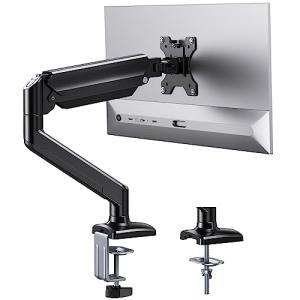
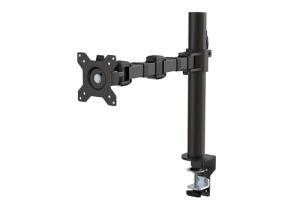
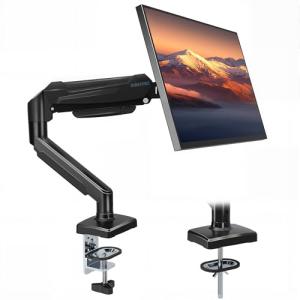
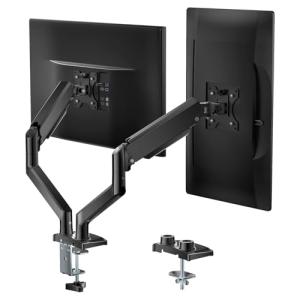
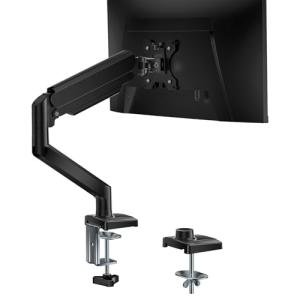
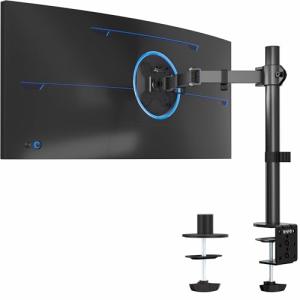
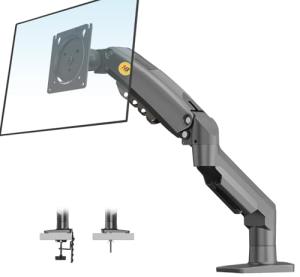
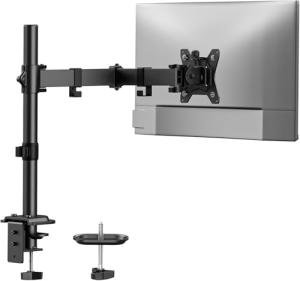
C-Clamp/Grommet Mount Arms (Flexibility and Stability):
-
Pros: These are the most common and robust desktop mounting solutions. The C-clamp attaches to the back edge of your desk, while the grommet option uses a hole through the desktop itself. They provide maximum stability and are suitable for heavy monitors. The gas spring mechanism allows for fluid, single-finger height adjustment.
-
Cons: Requires a desk surface that can handle the clamp pressure or has an existing grommet hole.
-
US Lifestyle Context: Essential for mounting large, heavy Ultrawide Monitors to an Electric Standing Desks , ensuring the screen remains stable and properly positioned during height transitions.
-
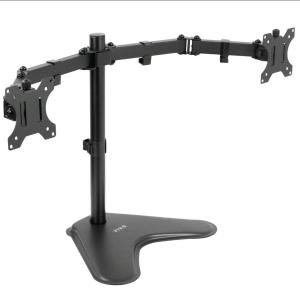
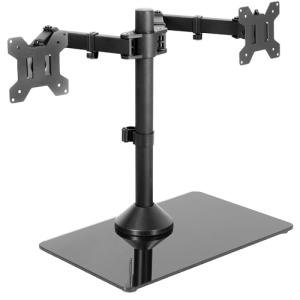
Free-Standing Monitor Stands (Mobility Focus):
-
Pros: These stands use a weighted base plate and are placed directly on the desktop. They require no clamping or drilling, offering easy installation and mobility. They are ideal for users who frequently move their setup or who use glass desks.
-
Cons: Consumes significant desk space and offers the lowest stability, especially at maximum height, which can compromise viewing clarity for detailed 24/7 Monitoring tasks.
-
US Lifestyle Context: Suitable for a secondary workstation or temporary setups, like placing a screen near a treadmill or in a living room for occasional use.
-
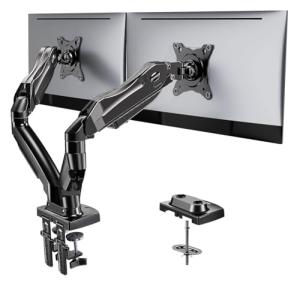
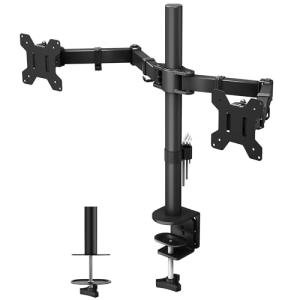
Multi-Monitor Arrays (Productivity Maximization):
-
Pros: Single-post mounts or multiple arms attached to one clamp allow you to float two, three, or even four monitors. This is critical for maximizing digital workspace, eliminating clutter, and ensuring all screens align perfectly for seamless workflow.
-
Cons: Requires precise balancing and professional-grade adjustment during setup. The total weight capacity must be checked rigorously.
-
US Lifestyle Context: Necessary for a financial analyst or software developer who needs massive screen real estate for continuous data analysis and multiple Remote Access sessions.
Compatibility Protocols
For seamless integration and optimal performance, Monitor Arms/Stands must support physical and functional standards while enabling smart features.
-
VESA Compliance: This is the universal standard for mounting. Ensure your monitor arm supports the VESA pattern on your screen (e.g., 75mm x 75mm or 100mm x 100mm). This non-electronic compatibility is non-negotiable for safe mounting.
-
Cable Management: A quality arm must include internal or external channels to route video cables (HDMI, DisplayPort) and power cords. Proper cable routing prevents cables from pulling loose during movement and ensures better power management. This contributes to component Energy Efficiency .
-
Ergonomic Range: The arm must support the necessary vertical range to allow the monitor's center to align with your eyes while sitting, and then raise the screen sufficiently for standing height, complementing Ergonomic Executive Chairs and standing desks.
3. 🛠️ Installation and Setup Walkthrough
Installing Monitor Arms/Stands is straightforward, but careful weight adjustment and torque control are crucial for safe, fluid movement of the screen.
Pre-Installation Preparations
-
Check Weight: Determine the exact weight of your monitor (excluding the factory stand). Ensure the Monitor Arms/Stands 's advertised weight capacity falls within the specified range to ensure safe and stable operation.
-
Attach VESA Plate: Secure the monitor's VESA mounting plate to the back of the monitor using the shortest screws that fit the monitor's mounting depth. Using screws that are too long can damage the display panel.
-
Clear Desk: Remove the monitor from the desk and clear the area where the clamp or grommet will be installed.
Installation Guide (Typical Gas Spring Arm)
-
Mount the Base: Secure the arm base to your desk via the C-clamp or grommet hole. Tighten the clamp until the base is completely immovable.
-
Attach the Arm: Assemble the arm segments and attach the gas spring mechanism to the base.
-
Mount the Monitor (Safety Step): Carefully lift the monitor and slide the VESA plate onto the arm's mounting head. Secure the safety screw.
-
Tension Adjustment (CRITICAL): This step ensures the arm floats correctly. Use the included wrench to adjust the gas spring tension screw (usually near the elbow joint) until the arm floats effortlessly at any vertical position without drifting up or down.
-
Final Positioning: Adjust the arm so the top of the screen is at or slightly below eye level. Test the full range of motion.
Troubleshooting Common Issues
-
Issue 1: Monitor Drifts Upward or Downward.
-
Issue 2: Arm Cannot Hold the Monitor's Weight.
-
Resolution: Your monitor is heavier than the arm's capacity, or the tension screw is maxed out. You must purchase a higher-rated arm or reduce the monitor weight. Do not trust the arm if it struggles, as it is a major safety failure.
-
Issue 3: Cables Pull Out During Movement.
4. Advanced Automation and Maximizing Value
The precision and dynamic positioning of Monitor Arms/Stands are crucial for integrating visual tasks and management into a smart workflow.
Powerful Automation Scenarios
-
Ergonomic Transition Coordination: When your Electric Standing Desks moves to its standing height preset, the Monitor Arms/Stands ensures the screen stays perfectly aligned with your eyes. This dynamic coordination maximizes the health benefits of the standing routine and contributes to user Energy Efficiency .
-
Security View Optimization: You integrate the arm with a simple routine. When the Video Doorbell is pressed, you use a voice command via Remote Access to quickly swing the monitor into your direct view, displaying the live 24/7 Monitoring feed for instant verification.
-
Scheduled Power Management: You integrate the monitor's power plug (via a Smart Power Strip ) with a routine. At 6 PM, the monitor arm is physically pushed to the wall, triggering an automation that cuts power to the monitor, eliminating standby power and maximizing Energy Efficiency .
Longevity & Maintenance
The longevity of Monitor Arms/Stands is tied to maintaining the integrity of the gas spring mechanism and the mounting points. Periodically check all clamp and VESA screws for tightness, especially on heavy Ultrawide Monitors . Do not lubricate the gas spring cylinder, as it is a sealed unit. Keep the cable channels clean to prevent friction. Proper tensioning (Issue 4) is the best way to ensure the arm lasts for years of reliable 24/7 Monitoring movement.
5. COMPLEMENTARY CATEGORY RECOMMENDATIONS (MANDATORY TABLE)
| Recommended Categories |
Why This Category Is Useful Specifically for This Product |
Short Usage Scenario |
| Electric Standing Desks |
The arm ensures the monitor maintains the perfect ergonomic height necessary for sit-stand transitions on the desk. |
The arm moves the monitor up 15 inches as the electric desk moves to the standing preset. |
| Ultrawide Monitors |
Arms are vital for supporting the large size and weight of these displays and positioning the curve correctly for the user. |
The arm supports the heavy Ultrawide Monitors and positions the curve for optimal viewing distance. |
| Smart Power Strips |
Used to manage the power flow to the monitor and accessories, enabling automated shutdown for Energy Efficiency . |
The smart strip cuts power to the monitor, which is physically pushed back toward the wall. |
| 4K 5K Business Monitors |
The arm provides the precise, stable adjustment required for detailed professional work on high-resolution screens. |
The arm allows for quick adjustment of the 4K monitor to share the screen with a seated collaborator. |
| Motion Presence Sensors |
Sensors detect occupancy, providing the trigger for automated monitor sleep/wake routines, saving energy. |
The sensor detects the user leaving, and the automation puts the monitor into low-power standby. |
| Smart Desk Lamps |
The arm frees up space on the desk, allowing for a better placement of a task lamp for focused lighting. |
The desk lamp is placed where the monitor stand used to be, maximizing task lighting effectiveness. |
| Ergonomic Executive Chairs |
The monitor arm height must align perfectly with the eye level established by the adjustable settings of the ergonomic chair. |
The arm's height is adjusted to match the comfortable sitting height of the Ergonomic Executive Chairs . |
| Video Doorbells |
The monitor can be swung into position to display a clear 24/7 Monitoring feed from the doorbell or security cameras via Remote Access . |
A voice command swings the monitor to the side to view the doorbell feed. |
Monitor Arms/Stands are the ultimate ergonomic and aesthetic upgrade for any home office, transforming your static screen into a fluid, responsive component of your workspace. They provide crucial support for heavy displays, maximize desk space, and ensure perfect postural alignment. By guaranteeing the monitor is always in the optimal position for clear 24/7 Monitoring , they enhance productivity and maximize your personal Energy Efficiency . Choose a high-quality Monitor Arms/Stands today and gain seamless control via Remote Access over your digital view.