🔌 Choosing Your System: Key Features and Compatibility
The decision process for acquiring a Fire Tv Cubes/Sticks device comes down to prioritizing portability, performance, and smart home control. You primarily choose between the ultra-portable stick variants and the higher-performance Cube.
Essential Variations
-
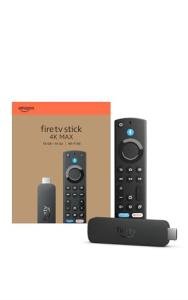
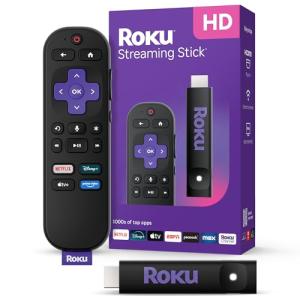
Fire TV Stick (e.g., 4K Max): This is the ultimate plug-and-play solution. Its small, stick-like form factor plugs directly into an HDMI port and can be discreetly hidden behind your TV. The sticks are incredibly budget-friendly and are perfect for a secondary TV, a guest room, or for travelers. You still get excellent 4K streaming and voice control via the included remote, but you generally rely on a strong Wi-Fi connection and an optional adapter for Ethernet.
-
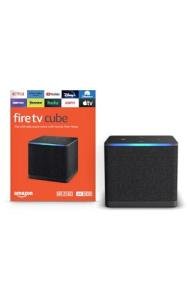
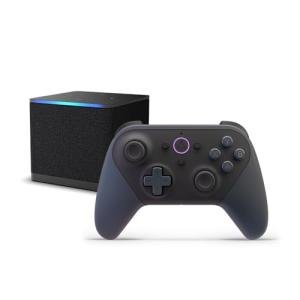
Fire TV Cube: This is the flagship device and the true smart home powerhouse. The cube-shaped unit requires a spot on your entertainment console but offers an octa-core processor that delivers blazing-fast performance. Crucially, the Cube features built-in far-field microphones for hands-free Alexa control, even when your TV is off. It also typically includes an integrated Ethernet port for rock-solid connectivity, which is essential if you demand continuous, high-bitrate 4K streaming. Furthermore, the Cube often features an HDMI input port, a unique feature allowing you to route another device (like a cable box or game console) through it to unify control with Alexa.
For a family in a suburban Texas home that relies on constant entertainment and smart home automation, the Fire TV Cube provides the enhanced performance and superior integration you need for reliable 24/7 Monitoring of your connected devices.
Compatibility Protocols
Your Fire Tv Cubes/Sticks are the command center for your entertainment, but they also act as a crucial link for your smart devices. The primary communication standard is Wi-Fi (often supporting Wi-Fi 6 or the even faster Wi-Fi 6E on premium models like the latest Cube). This fast wireless connection handles the high bandwidth required for 4K and Dolby Atmos content.
For smart home integration, the devices leverage Alexa's inherent capabilities. The latest high-end Fire Tv Cubes/Sticks often include built-in support for Matter and Thread , two revolutionary new smart home protocols. Matter is designed to unify connectivity across different brands (like Google, Apple, and Amazon), ensuring that your various smart lights, locks, and thermostats all speak the same language. By acting as a Thread Border Router , the Cube extends the mesh network for compatible low-power devices, strengthening the overall network and improving the responsiveness and Energy Efficiency of your connected home.
🛠️ Installation and Setup Walkthrough
Installing your new Fire TV device is designed to be straightforward, allowing you to enjoy your seamless experience as quickly as possible.
Pre-Installation
Before you even plug anything in, confirm two things: first, ensure you have a strong, consistent Wi-Fi signal at the TV's location. If you are opting for a Stick and your router is across your three-story Pennsylvania colonial home, consider a Wi-Fi Mesh system to guarantee the 25 Mbps needed for reliable 4K streaming. Second, if you are installing a Fire TV Cube, ensure you have a clear space for the cube itself and that you can access your TV's HDMI port and a nearby power outlet. The Cube should be placed where it can "hear" you easily for the hands-free Alexa function.
Installation Guide
-
Plug In and Power Up: For a Fire TV Stick, plug it directly into an open HDMI port and connect the provided USB cable to the power adapter (not your TV’s USB port, as it often won't provide enough power). For the Cube, connect the HDMI output to your TV, and, if applicable, connect your cable box or console to the Cube's HDMI input, then plug in the power cord.
-
Pair the Remote: Insert the batteries into your remote. Your device will prompt you to press and hold the Home button until the remote pairs.
-
Network Connection: The device will automatically detect your local Wi-Fi networks. Select your network and enter your password. The advanced Wi-Fi capability of the premium Fire Tv Cubes/Sticks will connect you quickly.
-
Amazon Account and Apps: Sign in with your Amazon account. The device will sync your purchases and prompt you to download your favorite streaming apps (Netflix, Hulu, Disney+, etc.).
-
Smart Home Setup: The Cube will then walk you through setting up its IR control to manage your TV, soundbar, or receiver using voice commands, further simplifying your Remote Access experience.
Troubleshooting
-
Issue: Remote Commands Not Working: Your TV or soundbar may not be correctly recognized by the IR blaster (on the Cube) or the CEC/IR control (on the Stick). Solution: Go to Settings > Equipment Control > Manage Equipment and run the automatic setup again. You may need to manually select your specific brand and model number.
-
Issue: 4K Video is Choppy: This is almost always a network bandwidth problem. Solution: If using a Stick, try moving the router or buying an optional Ethernet adapter. If using the Cube, ensure you are using the built-in Ethernet port for the most stable experience.
-
Issue: Hands-Free Alexa Doesn't Hear Me: For the Fire TV Cube, the microphone array may be blocked or too far away. Solution: Ensure the Cube is not enclosed in a cabinet and that the mic-mute button is not activated (it glows red when muted).
4. Advanced Automation and Maximizing Value
The true value of premium Fire Tv Cubes/Sticks is unlocked when you treat them not just as a streamer, but as the powerful automation engine they are. Your device's capabilities extend well beyond content consumption.
Automation Scenarios
-
The Home Theater Trigger: Utilize the advanced Alexa Routines features. Set up a simple routine: "Alexa, it’s movie night." This single voice command can simultaneously: turn on your TV (via the Fire TV's control), switch the smart lights in your Florida home living room to a dimmed, warm color (improving Energy Efficiency when lighting is not needed), turn on your soundbar, and launch your preferred streaming app, providing you with a complete, hands-free media experience.
-
The Security Monitoring Overlay: Integrate a smart security camera or video doorbell with the Alexa ecosystem. When motion is detected on your front porch (a vital part of your 24/7 Monitoring strategy), create a routine that automatically announces: "Motion detected at the front door" and pauses your Fire TV stream. For the ultimate seamless integration, the Fire TV can often be configured to display a live video feed of the camera on your screen. This scenario proves essential whether you are waiting for a package or just monitoring your home from the couch.
-
The Parental Control Lockdown: Use the dedicated voice control features to manage profiles. A routine can be set where saying "Alexa, turn on Kid Mode" locks the Fire TV to only display approved apps and content, while simultaneously triggering a paired smart plug to cut power to a nearby gaming console. This simple step gives you granular Remote Access control over screen time.
Longevity & Maintenance
To ensure your Fire Tv Cubes/Sticks provide maximum value for years to come, a little proactive maintenance is key. Always allow your device to complete firmware updates as they become available. These updates not only add new features and fix bugs but are also essential for security and compatibility with new smart home standards like Matter. Check your device settings regularly to offload any rarely used apps, particularly if you have a Stick with lower storage, to maintain snappy performance. The low power consumption of these devices means their Energy Efficiency is generally excellent, but unplugging them for 30 seconds every few months can clear the cache and keep your experience running smoothly.
5. COMPLEMENTARY CATEGORY RECOMMENDATIONS
| Recommended Categories |
Why This Category Is Useful Specifically for This Product |
Short Usage Scenario |
| Smart Displays |
Provides a visual dashboard for the same Alexa ecosystem, allowing for quick control and viewing of cameras without interrupting the TV. |
Use a smart display in the kitchen to view your video doorbell feed while you are watching TV on your Fire TV. |
| High Fidelity Smart Speakers |
Enhances the Fire TV's immersive audio experience and acts as an additional, high-quality microphone for superior far-field voice commands. |
Pair two high-fidelity speakers wirelessly with your Fire TV Cube to create a powerful, voice-controlled home theater sound system. |
| Networking Gear |
Ensures the ultra-fast, low-latency Wi-Fi 6/6E connection required by the Fire TV for stable 4K streaming and cloud gaming. |
Upgrade to a Wi-Fi 6E mesh system to eliminate buffering when streaming a 4K movie and simultaneously running multiple smart devices off your Fire TV's connection. |
| Universal Smart Remotes |
Consolidates all your IR and Bluetooth AV controls into one physical device, creating a tactile backup and simpler control for non-voice users. |
Use a smart remote to quickly switch HDMI inputs and control volume on an older AV receiver that the Fire TV Cube's IR blaster struggles to manage. |
| Smart Lighting |
Allows the Fire TV's voice control to integrate ambient lighting into the entertainment experience for complete cinematic scene setting. |
Create an Alexa Routine on your Fire TV to dim the living room lights by 50% as soon as you say, "Alexa, play the movie." |
| Security Cams |
Extends the Fire TV's 24/7 Monitoring capability by enabling you to view live video feeds from anywhere in the home directly on your television screen. |
Ask your Fire TV to "Show me the nursery cam" to check on the baby without moving from the couch during a TV show. |
| Voice Remote Holders And Covers |
Protects your primary Remote Access tool and provides a simple way to store it near your couch, preventing the loss of your controller. |
Place your Alexa Voice Remote Enhanced in a glow-in-the-dark holder so you can easily find it on the dark couch after your movie routine has dimmed the lights. |
| Soundbars Audio |
Essential for capitalizing on the Fire TV's support for immersive audio formats like Dolby Atmos, elevating the cinematic quality of your viewing. |
Connect a Dolby Atmos-enabled soundbar to your TV's ARC port to ensure your Fire TV is delivering the maximum spatial audio experience during a blockbuster film. |