2. 🔌 Choosing Your System: Key Features and Compatibility
When selecting your Smart Planners/Calendars , you must choose the appropriate display technology (E-Ink vs. LCD), the required complexity of the sync protocol, and the features that best manage multi-user activity.
Essential Variations and Display Technology
Smart Planners/Calendars are primarily categorized by the visual experience, which influences their placement and power needs:
-
E-Ink/E-Paper Planners (Maximum Energy Efficiency):
-
Pros: These large-format planners (often 20 inches or more) use E-Ink technology, offering a grayscale, paper-like display that is easy to read in bright light. They consume minimal power, often running for weeks on a single battery charge or using very little continuous power when plugged in. This is the ultimate Energy Efficiency option.
-
Cons: Slower refresh rate, making live video or rapid switching between screens impossible. Best suited for static, list-based information.
-
US Lifestyle Context: Ideal for mounting in a high-traffic area like the kitchen or mudroom of a large family home, providing a non-distracting, always-on schedule visible to everyone.
-
LCD/LED Planners (Color and Interactive Focus):
-
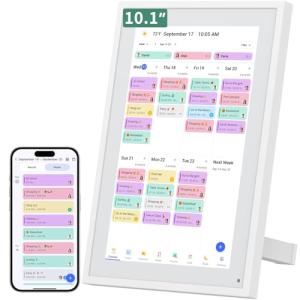
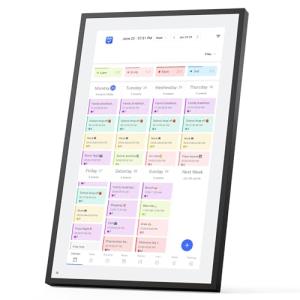
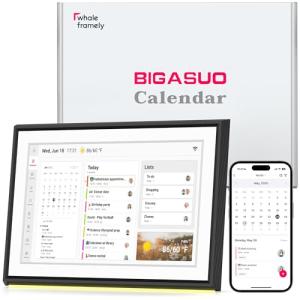
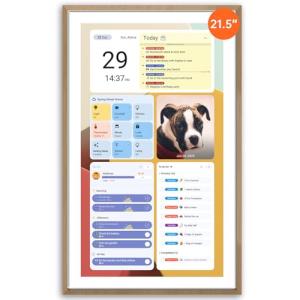
Pros: These Smart Planners/Calendars feature vibrant color screens with integrated touch capability. They offer faster interaction, better display of photos and graphics, and can integrate specialized apps (e.g., recipe apps or simple video communication).
-
Cons: Requires continuous power (plug-in) and draws more electricity than E-Ink, generating a constant heat source.
-
US Lifestyle Context: Suitable for a dedicated family planning area or a home office where quick, responsive access to detailed color-coded schedules is required.
-
Note-Taking Integration:
-
Pros: Some Smart Planners/Calendars allow you to write directly on the screen (with a stylus) for quick notes or annotations. This handwritten content is then digitized and synced, providing a hybrid approach that integrates with existing analog habits.
-
Cons: Handwriting recognition (OCR) can be inconsistent and requires a learning curve.
Compatibility Protocols
A strong, simple network connection is essential for Smart Planners/Calendars to ensure instant schedule updates and reliable alert delivery.
-
Wi-Fi Sync: The primary protocol. The Smart Planners/Calendars must connect to your home Wi-Fi network to pull data from the cloud calendars and send notifications. A stable Wi-Fi connection is vital for maintaining 24/7 Monitoring .
-
Cloud Calendar Support: The device must support two-way synchronization with your main digital calendar services (Google Calendar, Microsoft 365, etc.). This ensures schedule updates made on your phone are instantly reflected on the wall display.
-
Remote Access: The companion app provides Remote Access to manage the planner's settings, customize widgets, and manually add items to the shared calendar from anywhere.
-
API Integration: Look for open API support that allows you to link the planner's status (e.g., "Family Schedule Cleared") to other smart home automations (e.g., locking the door).
3. 🛠️ Installation and Setup Walkthrough
Installing Smart Planners/Calendars is often a simple wall mount or placement setup, followed by crucial software synchronization to link all family accounts.
Pre-Installation Preparations
-
Placement: Choose a highly visible location in the home (kitchen, command center). Ensure a power outlet is nearby, as most are plug-in. If wall-mounting, confirm the wall can support the weight.
-
Gather Credentials: Collect the login credentials for all family members' digital calendars (Google, Outlook) that need to be synchronized to the central planner.
-
Charge Stylus/App: Charge the input stylus (if applicable) and download the Smart Planners/Calendars companion app to your mobile device.
Installation Guide (Typical Wall-Mounted LCD Planner)
-
Mount: Install the mounting bracket on the wall. Mount the Smart Planners/Calendars display securely onto the bracket and plug it into power.
-
Network Setup: Use the on-screen prompts to connect the device to your Wi-Fi network and log into your manufacturer's cloud account.
-
Sync Accounts: Use the companion app to authorize access to each family member's calendar accounts. Set the planner to display all selected calendars simultaneously (often using color coding).
-
Test Remote Access: Add a test event to one digital calendar (via your laptop) and confirm it appears instantly on the wall planner. Use the wall planner to add a note and confirm it syncs back to your phone via Remote Access .
-
Energy Efficiency Schedule: Access the display settings. Configure the low-power sleep mode (e.g., dimming the screen or turning it off entirely between 12 AM and 5 AM) to save electricity.
Troubleshooting Common Issues
-
Issue 1: Calendar Events Are Delayed or Missing.
-
Resolution: The two-way synchronization is failing. Check the app to ensure cloud service permissions haven't expired. If the problem persists, the Wi-Fi signal is likely unstable, compromising the continuous 24/7 Monitoring sync.
-
Issue 2: Screen is Too Bright at Night (Energy Efficiency issue).
-
Issue 3: Handwriting Notes Fail to Sync to the Cloud.
4. Advanced Automation and Maximizing Value
Integrating Smart Planners/Calendars into smart home routines elevates simple organization into active, contextual automation.
Powerful Automation Scenarios
-
Contextual Reminders and Security: The calendar is used for 24/7 Monitoring of the pet sitter's schedule. When the pet sitter's scheduled time ends, an automation checks the lock status of the Smart Keyless Locks . If the lock is unlocked 15 minutes after the scheduled departure, the planner flashes a warning and sends a push alert via Remote Access reminding you to check security.
-
Morning Preparation Routine: The calendar recognizes the first event of the day (e.g., 6:30 AM). An automation triggers the planner screen to activate, simultaneously turning on the Smart Coffee Maker (plugged into a smart plug) and adjusting the Smart Thermostat to the "Day" setting, providing seamless convenience and Energy Efficiency .
-
Geofencing and Schedule Display: When the last family member leaves home (detected via geofencing), an automation cycles the planner to display the family's shared to-do list prominently. When a family member returns, the planner automatically switches to the personalized home screen.
Longevity & Maintenance
Smart Planners/Calendars require minimal physical maintenance but depend heavily on software health. Always install firmware and app updates promptly; updates often improve synchronization reliability, security patches, and Energy Efficiency features. Keep the screen clean with a microfiber cloth. For E-Ink models, avoid prolonged exposure to direct, intense sunlight, as it can damage the display layer. Ensure continuous power for the device to maintain its 24/7 Monitoring capabilities.
5. COMPLEMENTARY CATEGORY RECOMMENDATIONS
| Recommended Categories |
Why This Category Is Useful Specifically for This Product |
Short Usage Scenario |
| Smart Displays |
The large planner screen acts as a dedicated smart display, coordinating visual information with smaller hub units. |
Using the planner screen to view the live Video Doorbell feed when a visitor arrives. |
| Voice Assistants |
Voice input allows for hands-free creation of calendar events or to-do list items that immediately sync to the planner. |
Commanding the voice assistant, "Add 'Buy Milk' to the shopping list," and the item appears on the planner. |
| Smart Notepads |
The notepad captures handwritten input, which is then digitized and synced for display and management on the planner. |
Writing a note on the Smart Notepads and syncing it to the planner's dedicated notes widget. |
| Smart Power |
Smart plugs are used to automate appliances based on the schedule displayed on the planner. |
The planner's "Morning" schedule triggers the Smart Plug controlling the coffee maker. |
| Thermostats |
Scheduled climate control can be coordinated with the planner's multi-user schedule for optimal Energy Efficiency . |
The planner's "Away" schedule sets the Smart Thermostat back for maximum energy savings. |
| Central Hubs |
The hub integrates the planner's schedule information with local devices (lights, switches) for complex, time-based automations. |
The central hub uses the planner's "Movie Night" schedule to dim the living room lights. |
| Smart Home Control |
Used to program the overarching routines that rely on the planner's schedule information for security and convenience. |
Activating the "Leaving Home" routine via a control panel, which checks the planner for appointments. |
| Uninterruptible Power Supplies Ups |
A UPS protects the router and modem, ensuring the planner maintains connectivity for 24/7 Monitoring sync during power flickers. |
The UPS keeps the network running, ensuring the critical schedule remains visible and current. |
Smart Planners/Calendars are the essential organizational tool for bringing cohesion to your busy digital and home life. They eliminate fragmentation, provide continuous 24/7 Monitoring of your schedule, and offer seamless coordination via Remote Access . By choosing a high-efficiency model, you gain maximum utility with excellent battery Energy Efficiency . Simplify your family logistics and boost your productivity—choose Smart Planners/Calendars today.