The modern workspace relies on more than just a laptop; it requires a central hub that can manage power, data, and multiple displays simultaneously. A high-quality smart docking station transforms a single mobile device into a powerful desktop workstation, ensuring that peripherals like monitors, external drives, and wired internet connections are always ready to perform at their peak.
Smart Docking Stations
Stay connected and powered up with the ultimate convenience for all your devices
Product List

Nintendo Switch Portable Dock
Siwiqu
Product Review Score
4.93 out of 5 stars
11 reviews$35.99 $32.99
Anker 14-Port Docking Station
Anker
Product Review Score
4.71 out of 5 stars
22 reviews$299.99 $209.99
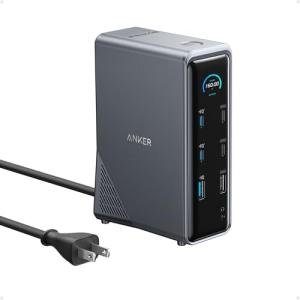
Anker 14-Port Docking Station
Anker
Product Review Score
4.73 out of 5 stars
112 reviews$269.99 $161.49
💡 Practical Usage Tips
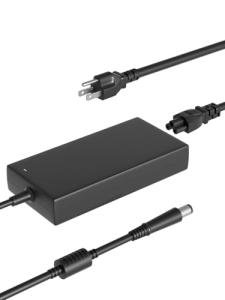
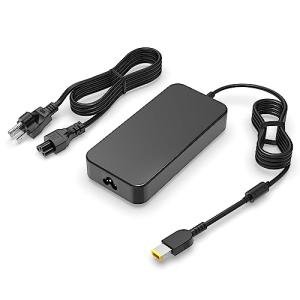
- Always use a high-wattage power adapter to ensure the dock has enough overhead to charge the laptop while simultaneously powering external hard drives and monitors.
- Check if the host laptop supports DisplayPort Alt Mode or Thunderbolt 4 before purchasing, as these protocols determine if the dock can actually output video to your screens.
- Place the docking station in a well-ventilated area because high-performance chips and power delivery circuits generate significant heat during long gaming or work sessions.
- Install the latest drivers from the manufacturer's website, especially for units using DisplayLink technology, to avoid flickering screens or connection drops.
✅ What to Look For & ⚠️ What to Avoid
Must-Haves:
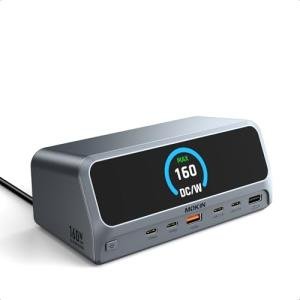
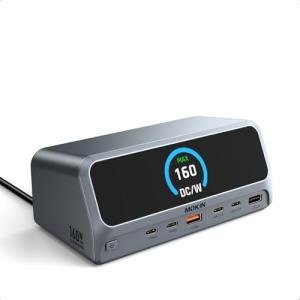
- Real-time telemetry displays, like the one found on the MOKiN 13-in-1 Dock, help monitor power draw and identify faulty cables instantly.
- An aluminum chassis is highly recommended because it acts as a passive heat sink to keep internal components cool and prevents Wi-Fi interference.
- High-speed data ports rated for at least 10Gbps are essential for users who frequently transfer large files to external SSDs.
Red Flags:
- Be cautious of portable docks that lack internal shielding, as they can cause your 2.4GHz wireless mouse or Wi-Fi to lag during use.
- Avoid using high-resolution 4K setups with uncooled plastic docks, as the lack of active cooling can lead to thermal throttling and hardware failure.
- Watch out for "100W" labels that do not account for the dock's own power consumption, which can leave your laptop with a low-power warning if the adapter is too small.
🛡️ Build Quality & Performance
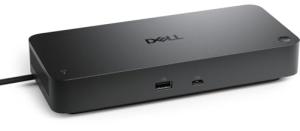
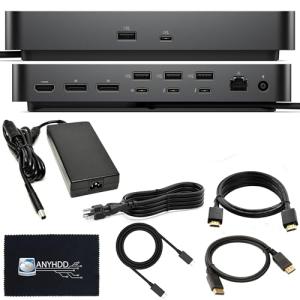
The physical construction of a smart dock is a strong indicator of its long-term reliability. Premium models typically feature aluminum alloy shells that feel substantial on the desk and effectively draw heat away from sensitive internal controllers. Units designed for professional environments, such as the Dell SD25TB4 Smart Dock, often include modular components like replaceable cables, which ensure the entire unit doesn't become e-waste if a single connector fails.
Performance is largely dictated by the chipset inside. High-end stations utilize GaN (Gallium Nitride) technology to pack more power into smaller footprints while maintaining stable voltage levels. When pushing multiple 4K displays or high-speed networking, look for docks with internal fans or ventilated housings. Without these features, the device may experience heat soak, leading to momentary disconnections of your mouse, keyboard, or internet link.
🏆 Top Recommendations
| Best For | Model Name | Key Feature | Why It Wins |
|---|---|---|---|
| Enterprise IT | Dell SD25TB4 | Intel Goshen Ridge | Supports remote management. |
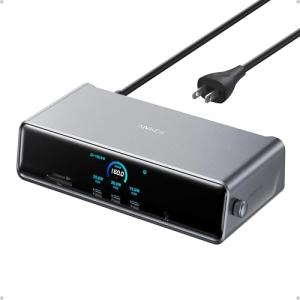
| MacBook Users | Anker Prime DL7400 | DisplayLink Chipset | Enables triple 4K displays. |
| Data Enthusiasts | MOKiN Smart Display | 2.26" LCD Screen | Real-time port diagnostics. |
❓ Frequently Asked Questions
Why does my laptop say it is charging slowly when connected to the dock?
Most docking stations reserve about 15W to 20W of power for their own internal circuits and the devices you plug into them. If you use a charger that is exactly the same wattage as your laptop's original brick, the dock "steals" some of that power, resulting in a slower charge rate for the computer.
Can I use a dual-monitor dock with a MacBook?
Standard MacBooks do not support multiple displays through a single cable using regular USB-C technology. To get around this, you must choose a dock with a DisplayLink chipset, which uses software to enable extra monitor outputs.
Does the dock need its own power supply?
While some small hubs can run off the laptop's battery, a true docking station works best when connected to its own dedicated power source. This ensures that high-speed ports and external monitors stay connected without draining your laptop's battery or causing signal drops.
Would you like me to compare the specific port layouts of the Anker and Dell models to see which fits your current peripherals better?