2. 🔌 Choosing Your System: Key Features and Compatibility
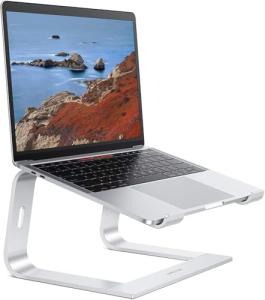
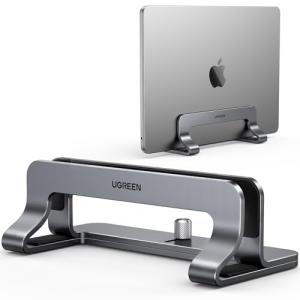
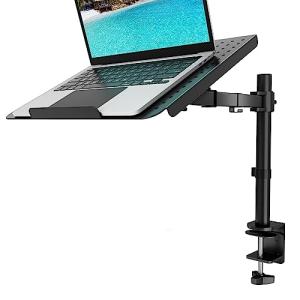
When selecting your Laptop Stands , you must choose the appropriate adjustment mechanism (fixed, adjustable, or dynamic), verify the weight capacity for your laptop size, and consider integrated connectivity features.
Essential Variations and Adjustment Methods
Laptop Stands are primarily categorized by their adjustment mechanism, which dictates portability and ergonomic precision:
-
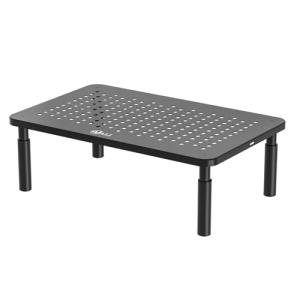
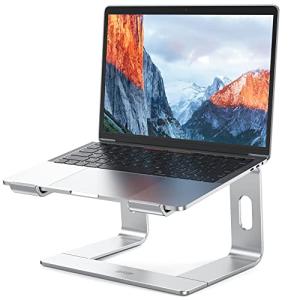
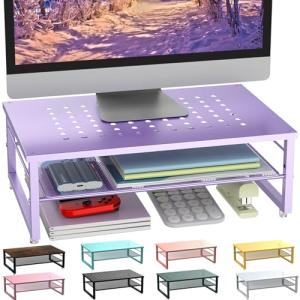
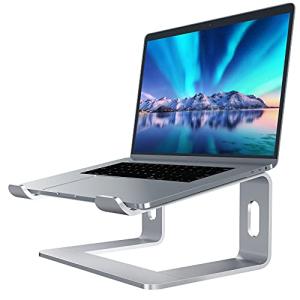
Fixed Height Riser Stands (Simple Stability):
-
Pros: These stands offer a non-adjustable but highly stable base, lifting the laptop to a set, fixed height (usually around 6 inches). They are the most affordable and simplest, requiring no assembly.
-
Cons: Lack of custom height adjustment, meaning they may not perfectly align with every user's eye level.
-
US Lifestyle Context: Ideal for a permanent home office setup in a fixed location where the user also uses a separate Ergonomic Mice/Keyboards and monitor.
-
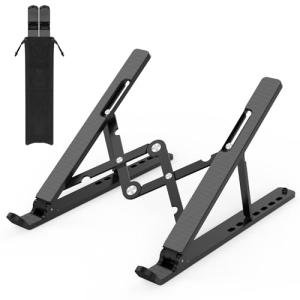
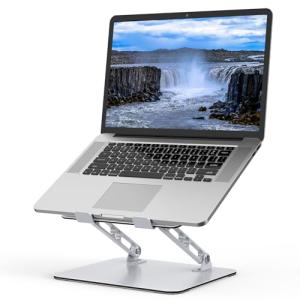
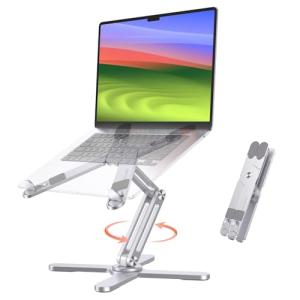
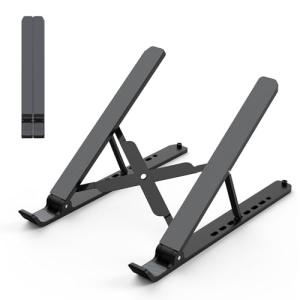
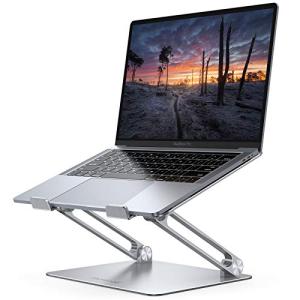
Articulating/Adjustable Stands (Ergonomic Precision):
-
Pros: These Laptop Stands feature locking hinges or friction joints that allow you to customize the height and tilt angle precisely. This provides the best ergonomic fit for different scenarios (sitting, standing, or use with external monitors).
-
Cons: Requires manual adjustment when changing posture. The hinges must be high quality to prevent slippage under the weight of a heavy 17-inch laptop.
-
US Lifestyle Context: Necessary for professionals who switch between seated and standing work (when paired with an Electric Standing Desks ) and need precise monitor alignment.
-
Integrated Hub/Cooling Stands (Connectivity and Energy Efficiency):
-
Pros: These advanced Laptop Stands include integrated USB hubs, power pass-through, or cooling fans. The fans actively reduce the laptop's temperature, preventing CPU throttling and maximizing computational Energy Efficiency . The hubs simplify cable management by consolidating power and data into one stand.
-
Cons: Requires a separate power cord to run the fan/hub, introducing additional cable clutter. Fans may create slight audible noise.
Compatibility Protocols
While the Laptop Stands is physical, its integration success is measured by how well it works with external accessories and maintains laptop health.
-
Ventilation Access: The design of the stand must not block the laptop's cooling vents. Optimal stands use open designs to maximize airflow and prevent overheating, which is crucial for hardware longevity and system stability.
-
Cable Routing: Look for stands with integrated cable management channels to neatly route the power and USB cables down the back, reducing desktop clutter and ensuring the cables don't interfere with the Ergonomic Mice/Keyboards .
-
Remote Access Base: The stand provides a stable base for the laptop's connection (Wi-Fi, Ethernet, smart dongles), ensuring continuous network connectivity for secure Remote Access and 24/7 Monitoring .
3. 🛠️ Installation and Setup Walkthrough
Installing Laptop Stands is typically tool-free and rapid. The main setup challenge is ensuring the screen height is perfectly aligned with the user's eye level for correct posture.
Pre-Installation Preparations
-
Desk Height: If using the stand for seated work, ensure your chair height is correct. Your elbows should be at a 90-degree angle to the keyboard (which will now be separate from the laptop).
-
External Peripherals: You must use an external keyboard and mouse (like the Ergonomic Mice/Keyboards ). Typing on an elevated laptop screen is ergonomically unsound.
-
Cable Check: If using an integrated hub stand, ensure the laptop's power cable and any USB-C hub cable are ready to be routed through the stand.
Installation Guide (Typical Articulating Stand)
-
Assemble Stand: Assemble the stand components (base, arm, platform) according to the instructions.
-
Position Laptop: Place the laptop securely on the stand's platform, ensuring the base grips are holding the unit firmly.
-
Adjust Height (CRITICAL): Adjust the stand height so the top edge of the laptop screen is precisely at eye level. This maximizes ergonomic comfort.
-
Connect Peripherals: Connect the external keyboard/mouse, and if using a cooling stand, plug the fan/hub into a USB port or power source.
-
Test Stability: Apply gentle pressure to the keyboard tray. The stand should not wobble or shift, ensuring stability for 24/7 Monitoring tasks.
Troubleshooting Common Issues
-
Issue 1: Stand Slips or Creeps Downward.
-
Resolution: The laptop is too heavy for the hinge tension, or the hinge screws are loose. Tighten the hinge mechanism with the provided tool. If slippage persists, the stand is underrated for your laptop's weight.
-
Issue 2: Laptop Overheats Despite the Stand.
-
Issue 3: Remote Access Session is Interrupted.
4. Advanced Automation and Maximizing Value
The stable, elevated platform provided by Laptop Stands enhances the performance and reliability of mobile devices used for smart home control and security.
Powerful Automation Scenarios
-
Thermal Performance Monitoring: You use a temperature sensor (accessory) under the stand to perform 24/7 Monitoring of the laptop's operating temperature. If the temperature exceeds a set threshold, an automation triggers a visual alert on your Smart Desk Lamps (flashing red), reminding you to save work and cool the system.
-
Ergonomic Efficiency Routine: You integrate the elevated laptop's status with your work routine. When the laptop is docked on the stand, an automation confirms "Work Mode" is active. This routine shuts down non-essential smart devices for Energy Efficiency and prioritizes network bandwidth for the laptop.
-
Security Confirmation: You use the webcam on the elevated laptop for security 24/7 Monitoring of your office when you step out. The stand's stability ensures the camera view is fixed and clear. You can check the live feed via Remote Access on your smartphone.
Longevity & Maintenance
The longevity of Laptop Stands is tied to maintaining the hinge mechanism and the protective surfaces. Lubricate the hinges annually (if the model permits) to ensure smooth, noise-free height adjustment. Regularly wipe down the surface grips to prevent dust buildup. Keep the contact points clean to prevent scratches on the laptop casing.
5. COMPLEMENTARY CATEGORY RECOMMENDATIONS (MANDATORY TABLE)
| Recommended Categories |
Why This Category Is Useful Specifically for This Product |
Short Usage Scenario |
| Ergonomic Mice Keyboards |
Essential accessories that allow typing and mousing in a neutral posture while the laptop screen is elevated. |
Using the Ergonomic Mice/Keyboards while the laptop rests on the stand at eye level. |
| Usb C Hubs |
Hubs provide the multi-port connectivity that modern slim laptops lack, often docking neatly underneath the stand. |
Connecting the Usb-C Hubs to the laptop and routing the single cable neatly down the back of the stand. |
| Electric Standing Desks |
The stand ensures the laptop screen is correctly positioned for standing height on the adjustable desk. |
Moving the electric desk to standing height, and the stand ensures the laptop screen is at eye level. |
| Smart Desk Lamps |
The lamp provides focused task lighting over the keyboard area, which is exposed by the raised laptop stand. |
The Smart Desk Lamps illuminates the external keyboard/mouse setup. |
| Portable Monitors |
The stand elevates the laptop to match the height of a secondary portable monitor for an optimized dual-screen setup. |
Elevating the laptop screen to match the height of the Portable Monitors for seamless viewing. |
| Power Storage |
Portable power stations allow the laptop and cooling stand to run off-grid, maximizing mobile Energy Efficiency . |
Powering the cooling fan/hub of the stand using a Portable Power Stations while working outside. |
| Motion Presence Sensors |
Sensors detect when the user is away, triggering the laptop and hub to enter low-power mode, saving energy. |
The sensor detects office vacancy, triggering the laptop to go into standby mode. |
| 4K Webcams |
The stand elevates the laptop's built-in webcam to a flattering, professional eye-level height for video calls. |
The stand ensures the built-in webcam is at eye level for professional video calls. |
Laptop Stands are the essential ergonomic foundation for any mobile workspace, eliminating neck strain and maximizing visual comfort. They improve performance by boosting thermal Energy Efficiency and ensuring a stable platform for your peripherals. By choosing an adjustable stand, you invest in long-term health and productivity. Enjoy seamless Remote Access and reliable 24/7 Monitoring of your workspace comfort. Upgrade your posture and your performance—choose a Laptop Stands today.