Finding the right USB-C hub can feel like navigating a maze of technical jargon and hidden limitations. Whether the goal is to transform a single laptop port into a full workstation or simply to connect an old mouse, the modern market offers a vast array of specialized tools. This guide breaks down the essential factors to ensure a seamless and efficient digital setup.
USB-C Hubs
Connect all your devices effortlessly with compact and versatile USB-C hubs
Product List
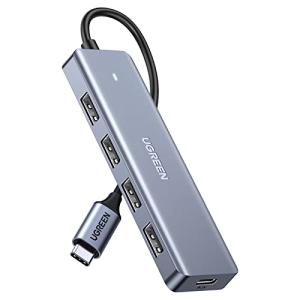
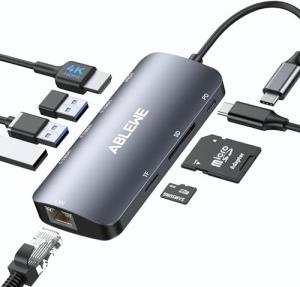
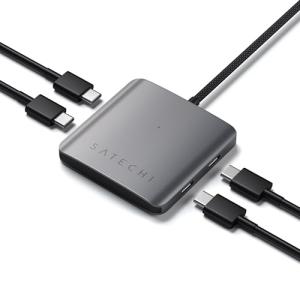
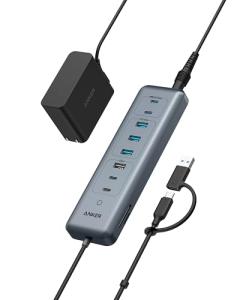
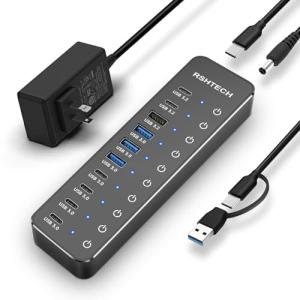
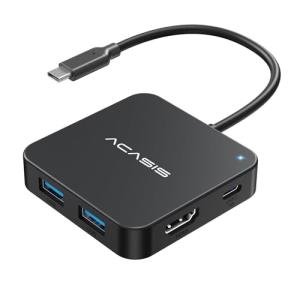
💡 Practical Usage Tips
- When using high-speed external drives, it is best to plug them into the hub before starting the computer to ensure the host device recognizes the full BANDWIDTH immediately.
- To keep the laptop battery healthy while using POWER DELIVERY, connecting a charger with at least 15W more power than the laptop requires will account for the hub's internal energy consumption.
- If wireless mouse lag occurs, moving the receiver to a port further away from active high-speed data cables can help reduce signal interference.
- Checking for DISPLAYPORT ALT MODE compatibility on the host laptop is a necessary step before attempting to use hubs with HDMI or DisplayPort outputs.
✅ What to Look For & ⚠️ What to Avoid
MUST-HAVES:
- Fast data transfer rates of 10GBPS are essential for anyone moving large video files or using external SSDs.
- An aluminum chassis is a valuable feature because it helps pull heat away from the internal chips during heavy use.
- The Acer 8-in-1 Hub is an excellent example of a balanced device that includes 4K video support alongside high-speed data ports.
RED FLAGS:
- Avoid hubs that only offer 5Gbps speeds if the primary goal is high-performance storage, as this will create a noticeable bottleneck.
- Be cautious of hubs that do not specify their REFRESH RATE for video, as many cheaper models are limited to a choppy 30Hz instead of a smooth 60Hz.
- Passive hubs without an external power source should not be used for multiple mechanical hard drives, as they may lose connection due to insufficient power.
🛡️ Build Quality & Performance
The physical construction of a hub determines its lifespan and daily reliability. High-quality options like the UGREEN Revodok Pro utilize sandblasted aluminum shells that not only look premium but also serve as a vital HEATSINK. This is particularly important because high-speed data transfers and power pass-through can cause the internal components to reach temperatures of up to 45°C. Without a metal housing to dissipate this energy, performance might throttle or the device could fail prematurely.
Beyond the casing, the integrated cable requires attention. Many modern hubs feature braided exterior sleeves and reinforced strain relief where the cable meets the hub body. This prevents the internal wiring from fraying after repeated bends in a laptop bag. While a short 0.5-foot cable is standard for portability, it is worth noting that some desktop-focused models offer longer leads to help with neat cable management around a monitor or stand.
🏆 Top Recommendations
| Best For | Model Name | Key Feature | Why It Wins |
|---|---|---|---|
| Power Users | Anker 565 11-in-1 | Dual Monitor Support | It handles video, data, and Ethernet simultaneously. |
| Data Transfer | Belkin Connect 4-Port | Quad 10Gbps Ports | It provides consistent high speeds across all ports. |
| Stationary Desks | Xiaobi 10-Port | 60W External Power | Individual switches allow for precise device control. |
❓ Frequently Asked Questions
Will a USB-C hub charge my laptop?
Only hubs with a designated PASS-THROUGH Power Delivery port can charge a laptop. The hub itself usually reserves about 15W of power for its own functions, so the actual charging speed will be slightly lower than the wall adapter's rating.
Why doesn't the HDMI port work on my monitor?
The most common reason is that the laptop's USB-C port does not support video output. For a monitor to work through a hub, the host computer must have a port that supports USB-C ALT MODE.
Is it normal for the hub to get hot?
Yes, it is normal for aluminum hubs to feel warm or even hot to the touch during use. This is a sign that the metal casing is successfully moving heat away from the internal CONTROLLER CHIPS to prevent them from overheating.